

Understanding why your Honeywell thermostat is locked
Why Honeywell Thermostats Use Screen Lock
If you’ve ever tried to adjust your Honeywell thermostat and found the screen locked, you’re not alone. Many homeowners encounter this feature, which is designed to prevent accidental changes to thermostat settings. The lock function is especially useful in homes with children, shared spaces, or rental properties, where unauthorized adjustments could lead to discomfort or higher energy bills.
Understanding the Purpose of Locking
Screen lock on a Honeywell thermostat helps maintain your preferred temperature and schedule. By locking the screen, you ensure that only authorized users can make changes. This can be a real advantage if you want to keep your energy usage consistent or avoid unwanted surprises on your utility bill. The lock feature is also helpful in commercial settings, where multiple people might have access to the thermostat.
- Prevents accidental or unauthorized changes to settings
- Maintains consistent comfort and energy efficiency
- Useful in homes with children or shared environments
When You Might Need to Unlock
There are times when you’ll want to unlock your thermostat. Maybe you need to adjust the temperature, update your schedule, or access advanced features. If you’re unsure how to unlock it, this article will help by guiding you through the process, from identifying your model to entering the correct code. If you’re using a non-programmable model, you might find this guide to Honeywell’s non-programmable thermostat helpful for understanding basic lock and unlock functions.
In the next sections, you’ll learn how to identify your Honeywell thermostat model, follow step-by-step unlocking instructions, and get tips for managing lock settings for future convenience. If you ever forget your unlock code or run into issues after unlocking, don’t worry—helpful feedback and troubleshooting advice are included to get your thermostat back to normal operation.

Identifying your Honeywell thermostat model
How to Find Your Honeywell Thermostat Model
Before you can unlock your Honeywell thermostat or adjust its settings, you need to know exactly which model you have. Honeywell offers a wide range of thermostats, each with its own screen lock features and menu layout. Identifying your model will help you select the right steps for unlocking and making changes to your thermostat settings.
- Check the Thermostat Faceplate: Most Honeywell thermostats display the model number on the front or behind the faceplate. Gently press and remove the faceplate if needed, and look for a label or printed code.
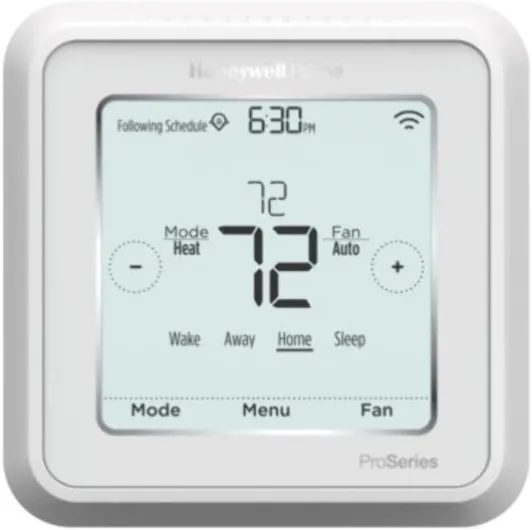
- Use the Menu: On touchscreen models, press the Menu button. Navigate through the menu until you find Device Information or Thermostat Information. The model number will often appear on the screen.
- Consult the Manual: If you still have the original manual, the model will be listed on the cover or inside the first few pages. If not, you can search for a digital version online using any numbers you find on the device.
Knowing your model is essential because the unlock code and steps to enter it can vary. For example, the Honeywell T9 Smart Thermostat has a different screen lock process compared to older models. If you want to learn more about the features and benefits of the Honeywell T9, check out this detailed overview of the Honeywell T9 Smart Thermostat.
Once you have identified your model, you will be ready to follow the step-by-step guide to unlock your thermostat and regain control over your settings. If you encounter any issues, such as a forgotten code, the next part of this article will help you troubleshoot and resolve them.
Step-by-step guide to unlocking your Honeywell thermostat
How to access the unlock menu on your Honeywell thermostat
Once you’ve identified your Honeywell thermostat model, you’re ready to unlock it for full access to the settings. The process is straightforward, but small differences exist between models. Always check your screen for prompts, as the menu layout may vary. Here’s a general guide that covers most Honeywell models:
- Press the Menu button on your thermostat. The screen will display several options. Look for the screen lock or lock setting.
- Select the lock option. You may see choices like Off, Partial, or On. To unlock, you’ll need to enter the correct code.
- Enter the unlock code. Use the arrow keys or touch screen to fill in the code. For many models, the default code is 1234 or 0000, but this can vary. If you’ve changed it before, enter your custom code.
- Press Select or Done. If the code is correct, the screen will confirm that the thermostat is unlocked. You can now adjust thermostat settings as needed.
If you see an error or the code doesn’t work, don’t worry. The next part of this article will help you troubleshoot forgotten codes and regain control. For those interested in broader smart thermostat solutions, you might find this guide to Pelican Wireless smart thermostats helpful for comparison.
After unlocking, you can make changes to your thermostat settings, adjust schedules, or set up new preferences. If you found this article helpful, consider leaving feedback so we can continue to improve our helpful feedback and resources for all users.
Troubleshooting if the unlock code is forgotten
What to Do When You Forget Your Unlock Code
Forgetting the unlock code on your Honeywell thermostat can be frustrating, but there are practical steps you can take to regain control. The process may vary slightly depending on your thermostat model, but the general approach remains similar.
- Check the screen: When the screen lock is active, the thermostat will usually display a prompt to enter the code. If you cannot recall the code, do not attempt random combinations, as this may temporarily disable the input feature.
- Access the menu: Press the Menu button on your thermostat. Some models allow you to select Settings and then navigate to Lock or Screen Lock options. Here, you may find a hint or a reset option.
- Model-specific reset: Certain Honeywell thermostats have a built-in reset function. This often involves pressing and holding specific buttons for a set period. Refer to your user manual or the manufacturer’s support page for exact instructions tailored to your model.
- Power cycle: In some cases, removing the thermostat from its base or briefly disconnecting power can prompt a reset. However, this does not always remove the lock, and settings may be lost, so use this method with caution.
- Contact support: If the above steps do not help, reach out to Honeywell customer support. Provide your model number and proof of purchase if requested. They can guide you through the process or supply a master code if available.
After regaining access, consider updating your thermostat settings to a memorable code and documenting it securely. This will help prevent future lockouts and ensure hassle-free changes to your thermostat settings.
If you found this article helpful, your feedback is appreciated. Let us know if these steps helped you unlock your Honeywell thermostat or if you have additional tips to share with others facing similar issues.
Tips for managing lock settings for future convenience
Making Lock Settings Work for You
Once you unlock your Honeywell thermostat, it’s a good idea to review how you manage the lock feature. This helps prevent future hassles and keeps your thermostat settings secure. Here are some practical tips to make the most of your screen lock options:
- Choose the right lock level: Most Honeywell models let you select between partial and full lock. Partial lock allows temperature changes but restricts access to advanced settings. Full lock prevents any changes unless you enter the correct code.
- Keep your code safe: After you set or change your lock code, write it down somewhere secure. If you forget it, you may need to follow extra steps to reset your thermostat, which can be time-consuming.
- Use the menu for adjustments: To change lock settings, press menu on your thermostat. Navigate to the lock option, then select your preferred setting. The screen will guide you through the process.
- Update settings after changes: If you make changes to your thermostat settings, consider whether you need to adjust the lock. For example, after a schedule update, re-enable the lock to maintain control.
- Check for helpful feedback: Many Honeywell models provide on-screen prompts or messages. These can help you confirm that your lock settings have been applied correctly.
Preventing Future Lockouts
To avoid getting locked out again, familiarize yourself with your thermostat’s lock menu. If your model supports it, set a code that’s memorable but not easy to guess. Regularly review your lock settings, especially after making changes to your thermostat or after a power outage.
If you ever need more guidance, the rest of this article can help you identify your model, unlock your device, and troubleshoot forgotten codes. Your feedback on these steps is always welcome, as it helps improve future guides and ensures the information stays helpful.
Common issues after unlocking and how to resolve them
What to Expect After Unlocking Your Thermostat
After you unlock your Honeywell thermostat, you might notice a few changes on the screen or in the settings menu. Sometimes, the screen will refresh or display a confirmation that the lock has been removed. If you made changes to the lock or code, these will take effect immediately. Here are some common issues users report after unlocking and how to address them:
- Settings not saving: If you select new thermostat settings but they do not save, double-check that the screen lock is fully disabled. Press the menu button, review the lock status, and try again.
- Screen unresponsive: Occasionally, the screen will freeze after you enter the unlock code. A simple restart—by removing the thermostat from its base and reattaching it—can help. Make sure the width of the thermostat is properly aligned when reinstalling.
- Code not accepted: If the code you enter is not working, confirm you are using the correct code for your model. If you have forgotten the code, refer to the troubleshooting steps earlier in this article for help.
- Menu options missing: After unlocking, some menu options may still be hidden. Press the menu button again to refresh the display. If options are still missing, check if a partial lock is still active in the settings.
Helpful Feedback and Next Steps
If you continue to experience issues, providing helpful feedback to Honeywell support can speed up solutions. Note the exact steps you took, any error messages on the screen, and the model of your thermostat. This information will help support teams fill in the gaps and offer precise advice.
Remember, managing your lock settings regularly and keeping track of your code will unlock hassle-free control in the future. If you found this article helpful, let us know—your feedback helps us improve our guides for everyone.