

Understanding your Honeywell thermostat interface
Getting Familiar with the Display and Controls
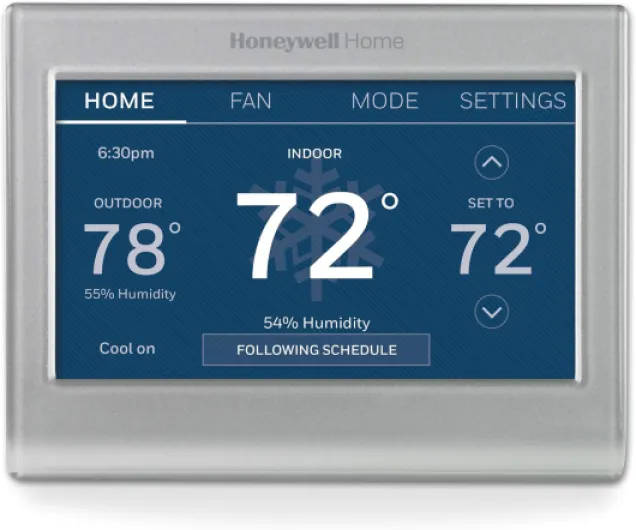
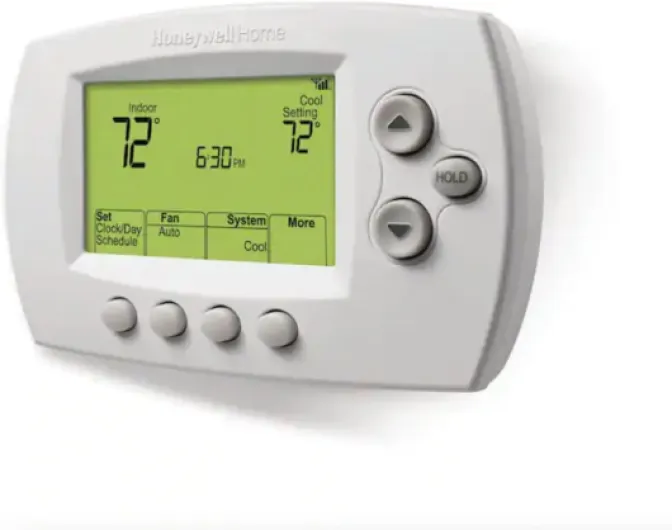
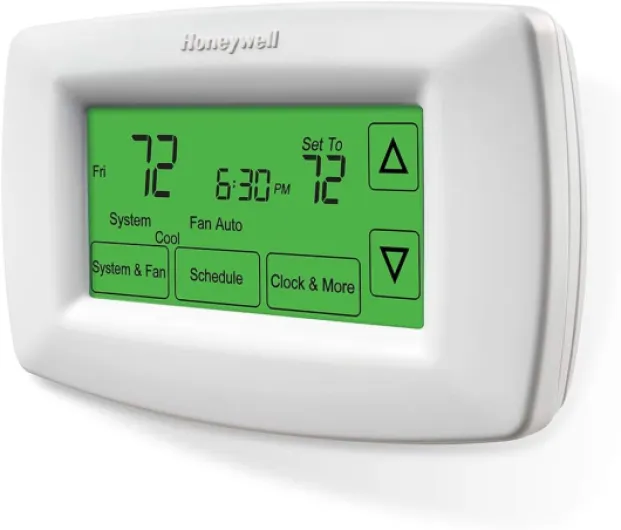
Before you set your Honeywell thermostat for optimal comfort, it's important to get comfortable with its interface. Most Honeywell thermostats, whether programmable or smart, feature a clear digital display showing the current room temperature, system status (heating, cooling, or off), and the set temperature. You’ll also find several buttons or a touchscreen for navigation and adjustments.
- Display Screen: Shows current temperature, set temperature, and system mode (heating, air conditioning, or fan).
- Navigation Buttons: Typically labeled as Up, Down, Menu, Select, or Program. These allow you to change temperature, set schedules, or access advanced settings.
- System Switch: Lets you choose between heating, cooling, or turning the system off. Some models include an Auto mode for automatic switching between heating and cooling.
- Fan Control: Options for Auto (fan runs only when heating or cooling is active) or On (fan runs continuously).
For programmable Honeywell thermostats, you’ll notice extra options to set a program schedule. Smart thermostat models may offer Wi-Fi connectivity, allowing you to control settings from your phone or integrate with home automation systems. If you’re unsure about any button or icon, the user manual provides detailed instructions for your specific model.
Sometimes, users encounter a blank thermostat screen, which can be caused by power issues, wiring problems, or system malfunctions. If your Honeywell thermostat display is blank, it’s helpful to review common causes and solutions for blank thermostat screens to troubleshoot quickly.
As you move forward, you’ll use the Set or Program button to adjust the desired temperature, set time, or create a program schedule. The next steps will guide you through manual temperature changes, programming your daily or weekly schedule, and using smart features for even more convenience and energy savings.
Setting the desired temperature manually
Manually adjusting your Honeywell thermostat
Setting the desired temperature on your Honeywell thermostat is straightforward, whether you have a basic model or a programmable smart thermostat. Start by waking up the display if it’s in sleep mode. Most Honeywell thermostats will respond to a light touch or a press of any button.
- Locate the up and down arrow buttons. These are typically used to change temperature settings.
- Press the up arrow to increase the temperature for heating, or the down arrow to lower it for cooling. The display will show the new set temperature as you adjust.
- If your model has a "Select" or "Set" button, press it to confirm your setting. Some programmable Honeywell thermostats will automatically save the change after a few seconds.
- For systems with both heating and air conditioning, make sure you’ve selected the correct mode (heating, cooling, or auto) before adjusting. This ensures your system will respond as expected.
Manual adjustments override any programmed schedule until the next scheduled change. If you want to maintain a specific temperature for longer, look for a "Hold" or "Temporary Hold" option. This feature keeps your selected temperature until you cancel it or the next program period begins.
For more details on using emergency heat or understanding what EM Heat means on your thermostat, check out this guide to EM Heat on thermostats.
Always refer to your Honeywell user manual for model-specific instructions. If you encounter issues with your thermostat set temperature not matching the room, or if the system doesn’t respond, troubleshooting steps are available in later sections of this guide. Remember, a well-set thermostat not only improves comfort but also helps manage energy use efficiently.
Programming a daily or weekly schedule
Creating a Personalized Program Schedule
Programming your Honeywell thermostat is a straightforward way to ensure your home’s temperature matches your daily routine. With a programmable thermostat, you can set heating and air conditioning to adjust automatically, saving energy and keeping comfort levels high. Here’s how you can set up a program schedule using the thermostat’s interface:
- Access the programming menu: Start by pressing the Menu or Program button on your Honeywell thermostat. This will bring up the scheduling options. If you’re unsure, check the user manual for specific instructions related to your model.
- Select the day or days: Most Honeywell thermostats allow you to program each day individually or group weekdays and weekends. Use the arrow buttons to choose the day you want to set.
- Set time periods: For each day, you can usually set multiple time periods (like Wake, Leave, Return, and Sleep). For each period, press Select or Set to adjust the start time and desired temperature for heating or air conditioning.
- Adjust temperature settings: Use the up and down arrows to set your preferred temperature for each period. This helps your system automatically switch between heating air or cooling turn as needed.
- Save your schedule: After setting the desired temperature and time, press Select or Done to save. Repeat for other days or periods as needed.
Programming thermostat schedules not only boosts comfort but also helps with energy efficiency. If you want to learn more about how a heat-only programmable Honeywell thermostat can benefit your home, check out this detailed guide on the benefits of a heat-only thermostat.
Remember, you can always make a manual setting change if your routine shifts unexpectedly. Most smart thermostats also allow you to override the program temporarily without deleting your schedule. For privacy policy details or further assistance, refer to your thermostat contact information or the official Honeywell website.
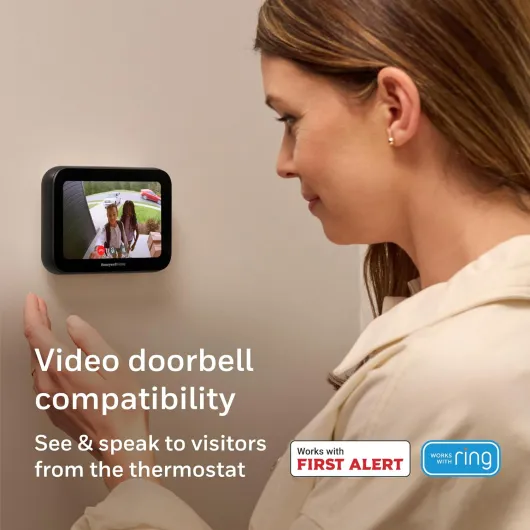
- + Wi-Fi connected for remote control and app access
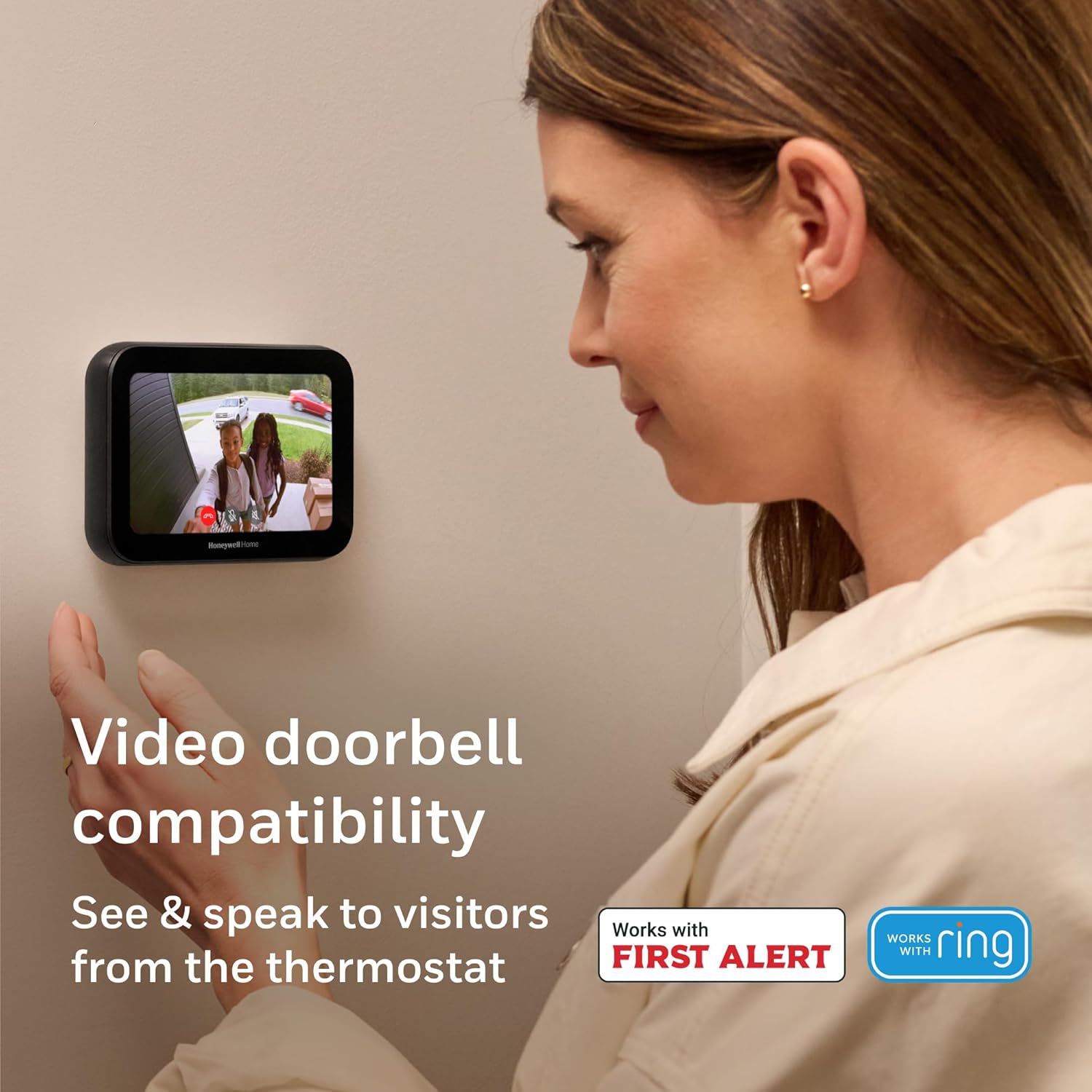
- + Video doorbell compatible to link entry alerts with the thermostat
- + IAQ control (indoor air quality) to monitor and manage air
- + Customizable touchscreen with an intuitive, modern interface
- + Sleek black design that fits contemporary interiors

Using smart features and connectivity options
Making the Most of Smart Connectivity
Modern Honeywell thermostats offer a range of smart features that go beyond basic temperature control. If your model is a programmable thermostat or a smart thermostat, you can connect it to Wi-Fi and manage your heating and air conditioning system from your smartphone or tablet. This means you can change temperature settings, set a program schedule, or adjust the air conditioning remotely, which adds flexibility and convenience to your daily routine.
- Wi-Fi Setup: Start by following the instructions in your user manual to connect your thermostat to your home network. Usually, you’ll need to press the menu button, select the Wi-Fi option, and follow the prompts to enter your network details.
- App Integration: Download the official Honeywell Home app or the app recommended for your thermostat model. Once connected, you can program schedules, set the desired temperature, and receive alerts about your heating air or cooling system directly from your device.
- Voice Control: Many Honeywell thermostats are compatible with smart home assistants. If your system supports it, you can use voice commands to change temperature or set a new schedule, making it easier to adjust settings without pressing a button.
Exploring Advanced Options
Smart thermostats often include features like geofencing, which can automatically adjust your heating or air conditioning based on your location. This helps save energy when you’re away and ensures comfort when you return. You can also set time-based routines, so your thermostat will automatically change temperature settings throughout the day according to your preferences.
To access these options, press the menu button, navigate to the smart features section, and select the settings you want to enable. If you want to program a more detailed schedule, use the app or the thermostat interface to select press and adjust each time block for heating or cooling turn on/off.
Privacy and Security
When using smart features, always review the privacy policy provided by Honeywell. This ensures you understand how your data is used and what options will help you maintain control over your information. For any concerns or if you need help, check your user manual or use the thermostat contact information for support.
By taking advantage of these smart features, you can make your programmable Honeywell thermostat work for your lifestyle, keeping your home comfortable while optimizing energy use.
Troubleshooting common setup issues
What to Do When Your Thermostat Isn’t Responding
If your Honeywell thermostat isn’t working as expected, don’t worry—many common issues can be resolved with a few simple steps. Here’s how you can troubleshoot setup problems and get your heating or air conditioning system back on track.- Check the Power: Make sure your thermostat is receiving power. If the display is blank, check the batteries or ensure the circuit breaker hasn’t tripped.
- Review Your Settings: Double-check that you’ve set the desired temperature and selected the correct mode (heating or cooling). Sometimes, a simple setting change can solve the problem.
- Verify the Program Schedule: If your programmable Honeywell thermostat isn’t following the schedule, confirm that the program is active and the set time is correct. Press the program or schedule button to review your settings.
- Manual Override: Try switching to manual mode to see if the system responds. Press select or the manual button, then adjust the temperature. If the system reacts, the issue may be with the programmed schedule.
- System Compatibility: Ensure your thermostat is compatible with your heating and air conditioning system. Some older systems may require specific wiring or settings.
- Reset the Thermostat: If problems persist, consult your user manual for instructions on how to reset your Honeywell thermostat. This can often resolve software glitches or programming errors.
When to Seek Further Help
If you’ve tried these steps and your thermostat still won’t set or program correctly, it may be time to contact Honeywell support or a qualified technician. Look for a thermostat contact number in your user manual or on the manufacturer’s website. Always follow privacy policy guidelines when sharing personal information during support calls. Remember, a smart thermostat is designed to make your life easier. With a bit of troubleshooting, you’ll usually get your heating air or air conditioning system working smoothly again.Tips for energy efficiency and comfort
Simple Ways to Boost Comfort and Save Energy
Getting the most from your Honeywell thermostat means more than just setting the temperature. A few smart habits can help you balance comfort and energy savings, whether you use manual or programmable settings.
- Program your schedule: Use the program schedule feature to automatically adjust heating and air conditioning when you’re home, away, or asleep. This reduces unnecessary energy use without sacrificing comfort.
- Adjust by season: In winter, set the thermostat lower at night and when you’re away. In summer, let the temperature rise a bit when you’re not home. Programmable Honeywell thermostats make these changes easy—just press the schedule or program button and select your desired settings.
- Use smart features: If your Honeywell thermostat is a smart thermostat, take advantage of remote control and learning features. These options will help optimize your heating air and air conditioning system based on your habits.
- Don’t override too often: Frequently using the manual override or changing temperature settings can reduce efficiency. Try to stick with your programmed schedule for best results.
- Check your system: Make sure your heating and cooling turn on and off as expected. If you notice issues, consult the user manual or look for troubleshooting instructions. Sometimes, a simple setting change or a quick press of the select button can resolve minor problems.
- Keep vents clear: Ensure air can flow freely by keeping vents and returns unblocked. This helps your system maintain the desired temperature efficiently.
- Review privacy policy and support: If you use smart features, review the privacy policy for your thermostat. For persistent issues, use the thermostat contact information provided in your user manual.
By following these steps, you can make the most of your programmable thermostat and enjoy a comfortable home while keeping energy costs in check.