

Understanding the basics of Honeywell thermostat settings
Getting to Know Your Honeywell Thermostat Controls
Before you can set a personalized schedule or optimize your heating and cooling, it’s important to understand the basics of your Honeywell thermostat. Whether you have a programmable thermostat or one of the newer smart thermostats Honeywell offers, the core functions remain similar. Let’s break down the essentials to help you get started.
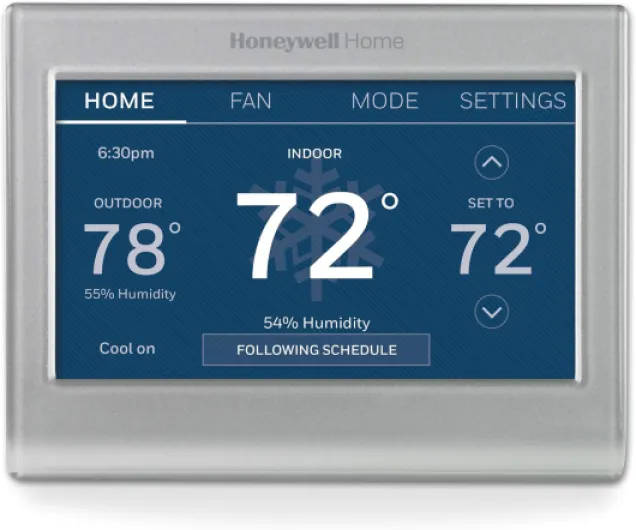
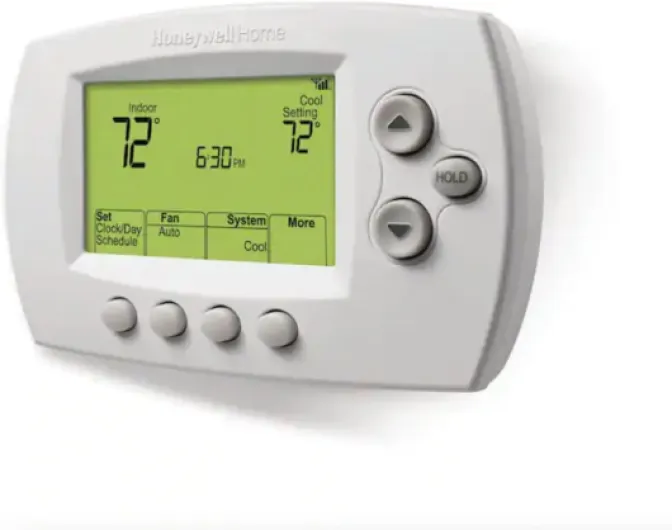
- Display and Buttons: Most Honeywell thermostats feature a clear display showing the current temperature, set temperature, and system status (heat, cool, or off). Common buttons include Menu, Schedule, Fan, Heat/Cool, and Press Select. Knowing what each button does is key for navigating the menu and making adjustments.
- Setting the Temperature: To adjust the temperature, use the up and down arrows or the touchscreen. This will change the thermostat set point for heating or air conditioning. For systems with multiple stages, you may see options for different heating or cooling levels.
- Switching Modes: The Heat, Cool, and Auto modes let you control whether your HVAC system provides heating, cooling, or automatically switches between both. The Fan setting allows you to run the fan continuously or only when heating/cooling is active.
- Understanding Schedules: Many Honeywell thermostats let you set a schedule for different days and times, such as weekdays versus Saturday and Sunday. This helps automate temperature changes based on your routine, saving energy and keeping your home comfortable.
- Menu Navigation: To access advanced settings or set the time, press the Menu button. From here, you can adjust system settings, set schedules, or configure features like minimum run time for heating or cooling cycles.
It’s also helpful to know that some Honeywell models support integration with other smart devices, allowing for even more control over your heating and air conditioning. If you’re curious about the technical side, such as how the thermostat communicates with your HVAC system or the role of the EIM (Equipment Interface Module), check out this guide to the Honeywell EIM for a deeper dive.
Once you’re comfortable with the basics, you’ll be ready to follow steps for setting up a personalized schedule and making the most of your Honeywell thermostat’s features.
Setting up a personalized schedule
Creating a Custom Schedule for Your Comfort
Setting up a personalized schedule on your Honeywell thermostat is one of the best ways to ensure your home stays comfortable while saving energy. Smart thermostats like those from Honeywell allow you to program different temperatures for various times of the day, and even for specific days of the week. This means your heating and air conditioning will only run when you need them, reducing unnecessary energy use.
- Access the schedule menu: Start by pressing the Menu or Schedule button on your Honeywell thermostat. This will bring up the scheduling options.
- Select the days: Many Honeywell thermostats let you set a schedule for weekdays and weekends separately. Some models allow you to customize each day, including Saturday and Sunday, for maximum flexibility.
- Set the time and temperature: For each period (morning, day, evening, night), choose the time you want the heating or cooling to start and the temperature you prefer. For example, you might set the heat to come on 30 min before you wake up, or have the air conditioning cool your home before you arrive in the evening.
- Adjust for your HVAC system: If you have a multi-stage heating or cooling system, make sure to set the appropriate stage for each period. This ensures your HVAC system operates efficiently and maintains your desired comfort level.
- Save your settings: After you’ve entered your preferred times and temperatures, press Select or Done to save your schedule. Your Honeywell thermostat will now follow this routine automatically.
Programmable thermostats like Honeywell models are designed to make life easier. By taking a few minutes to set your schedule, you can enjoy consistent comfort and potentially lower your energy bills. If you want to dive deeper into how smart thermostats integrate with your home’s heating, air conditioning, and even water systems, check out this guide to the Honeywell EIM for more insights.
Remember, you can always adjust your schedule as your routine changes. Whether it’s a new work-from-home day or a weekend getaway, your Honeywell thermostat makes it easy to adapt. Just follow the steps above to update your settings and keep your home comfortable year-round.
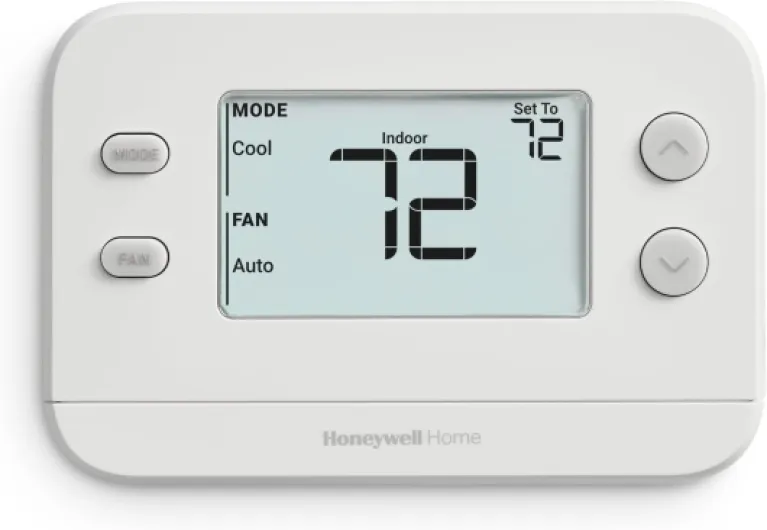
- + Easy to use - Non-programmable design
- + Single-stage compatibility - Works with 1 heat/1 cool systems
- + Compact size - Fits easily in any home decor
- + Reliable performance - Trusted brand with a good reputation

Adjusting settings for energy efficiency
Fine-tuning your Honeywell thermostat for energy savings
Getting the most out of your Honeywell thermostat means more than just setting a comfortable temperature. To really cut down on energy bills and make your home smarter, you need to adjust your heating and cooling settings with efficiency in mind. Here’s how you can use your programmable thermostat to balance comfort and savings:
- Use the schedule feature: Set your thermostat to automatically lower the heat or raise the air conditioning when you’re not home. For example, during weekdays, program the temperature to drop a few degrees after you leave for work and return to your preferred setting before you get back.
- Take advantage of days and time blocks: Most Honeywell thermostats let you set different schedules for weekdays and weekends (like Saturday and Sunday). Use this to match your routine, so your HVAC system isn’t running when it’s not needed.
- Set minimum and maximum temperatures: Avoid setting your thermostat too high in winter or too low in summer. The Department of Energy recommends setting your heat to 68°F (20°C) when you’re home and lowering it when you’re away. For cooling, try 78°F (25°C) when you’re home.
- Utilize fan settings: Many Honeywell thermostats have a fan button. Setting the fan to "auto" instead of "on" ensures it only runs when heating or cooling is active, saving electricity.
- Adjust for multi-stage systems: If your home uses a multi-stage heating or cooling system, make sure your thermostat is set to recognize the correct stage. This helps your HVAC system run more efficiently and keeps your home comfortable.
- Don’t forget about water heating: Some smart thermostats can also control water heating schedules. If your Honeywell model supports this, set a schedule that matches your household’s needs to avoid unnecessary heating.
To follow these steps, use the menu schedule option on your Honeywell thermostat. Press the menu button, then press select to access scheduling, and set your preferred heating and cooling times for each day. If you’re new to smart thermostats, you might also want to explore how to get a complimentary Nest thermostat for even more energy-saving features.
Remember, every degree you adjust can make a difference. By using these settings, your Honeywell thermostat will help you save energy without sacrificing comfort.
Troubleshooting common Honeywell thermostat issues
Quick Fixes for Unresponsive Controls
If your Honeywell thermostat isn't responding when you press a button or try to set the temperature, start by checking the basics. Make sure the thermostat is powered—if it's battery-operated, replace the batteries. For wired models, confirm the circuit breaker for your HVAC system is on. Sometimes, simply pressing the "Menu" or "Select" button can reset minor glitches. If the display is blank, double-check the power source and connections.Resolving Heating and Cooling Issues
When your heating or air conditioning won't turn on, first verify that your thermostat is set to the correct mode (heat, cool, or auto). Check the set temperature to ensure it's above (for heat) or below (for cool) the current room temperature. If the system still doesn't respond, inspect your HVAC system for tripped breakers or blown fuses. For multi-stage systems, confirm the wiring matches your Honeywell thermostat's requirements. If you have a programmable thermostat, make sure the schedule isn't overriding your manual settings.Addressing Schedule and Time Problems
If your thermostat isn't following your set schedule, review the programmed days and times. Double-check that AM and PM are set correctly, especially for Saturday and Sunday. Use the "Menu" and "Schedule" options to review or update your heating and cooling times. For smart thermostats, ensure your Wi-Fi connection is stable, as syncing issues can disrupt the schedule. Sometimes, a factory reset (found in the menu) can resolve persistent scheduling errors.Fan and System Mode Troubles
If your fan runs continuously or not at all, check the fan setting (auto or on) in the menu. "Auto" means the fan only runs when heating or cooling is active, while "On" keeps it running all the time. For issues with heating air or air conditioning, verify the system mode and stage settings. Some Honeywell thermostats allow you to set minimum run times or adjust the stage for more efficient heating and cooling.Water and Humidity Concerns
Some advanced Honeywell thermostats can control humidifiers or dehumidifiers. If you notice excess moisture or dryness, review the humidity settings in your thermostat's menu. Make sure any connected water panels or sensors are functioning properly. For HVAC systems with integrated water control, ensure all connections are secure and settings match your home's needs.- Always follow steps in your user manual for troubleshooting specific models.
- For persistent issues, consult a certified HVAC technician or Honeywell support.
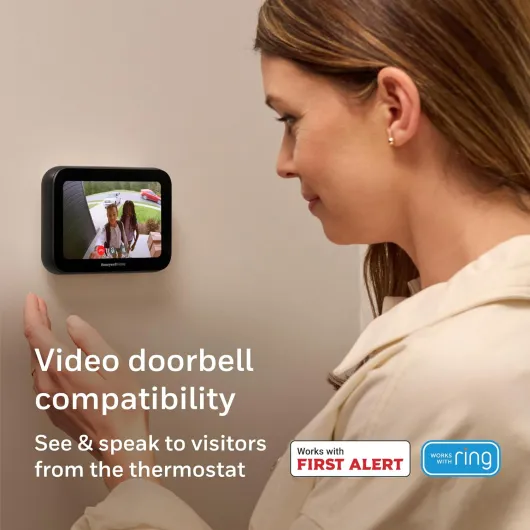
- + Wi-Fi connected for remote control and app access
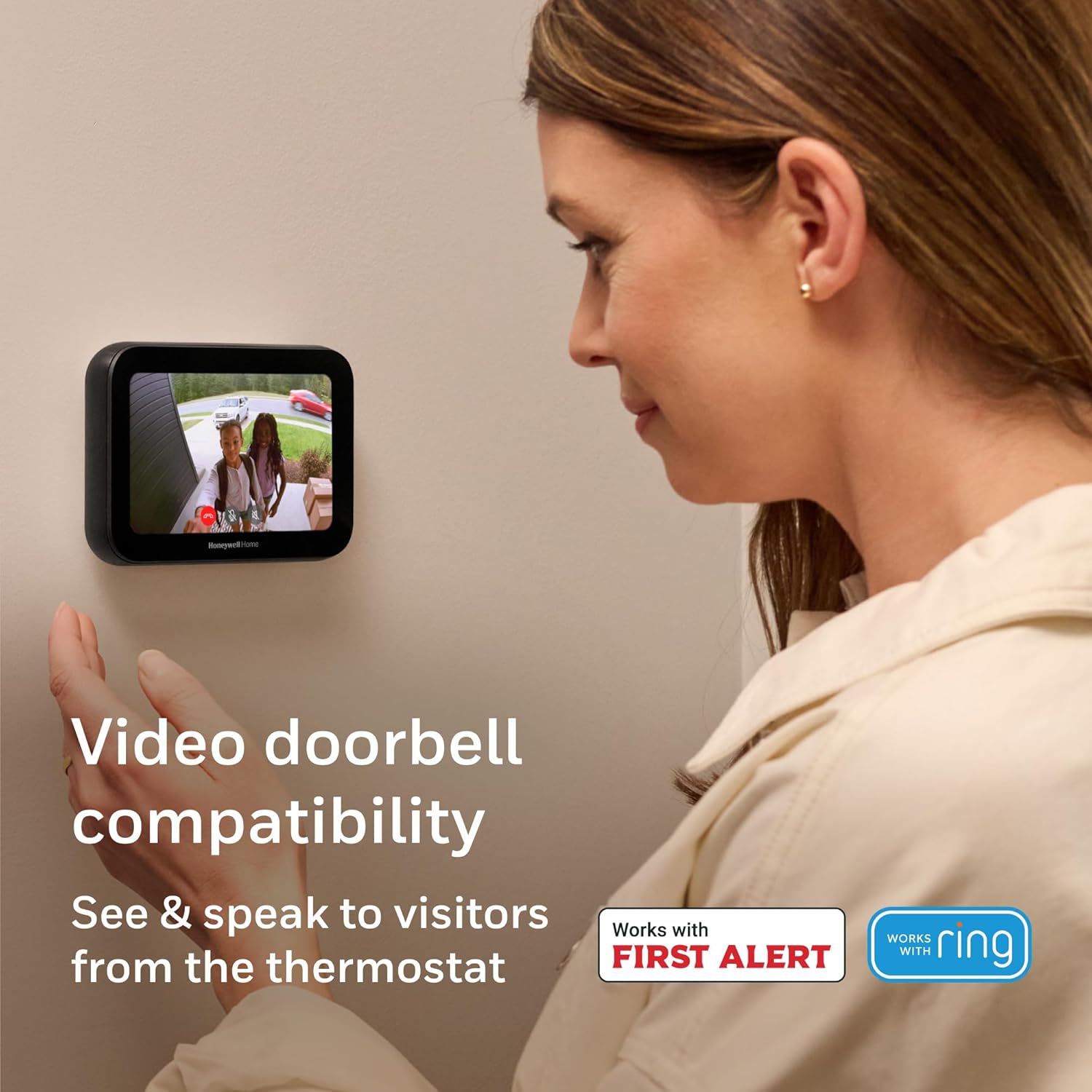
- + Video doorbell compatible to link entry alerts with the thermostat
- + IAQ control (indoor air quality) to monitor and manage air
- + Customizable touchscreen with an intuitive, modern interface
- + Sleek black design that fits contemporary interiors
Integrating your Honeywell thermostat with other smart devices
Connecting Your Honeywell Thermostat to a Smart Home Ecosystem
Integrating your Honeywell thermostat with other smart devices can really enhance your home’s comfort and efficiency. Once you’ve set your preferred schedule and adjusted settings for energy savings, connecting your thermostat to a broader smart home system lets you automate heating, cooling, and air conditioning in new ways.
- Compatibility: Most modern Honeywell thermostats, including programmable thermostat models, support integration with popular smart home platforms like Amazon Alexa, Google Assistant, and Apple HomeKit. Check your thermostat model and your HVAC system’s compatibility before starting.
- Wi-Fi Setup: To connect, ensure your thermostat is connected to your home Wi-Fi network. Use the menu schedule or menu press buttons on the thermostat to access network settings. Follow steps in the app or on the thermostat screen to join your network.
- Smart Home App: Download the relevant app for your smart home system. For example, the Honeywell Home app lets you manage temperature, set schedules, and control heating cooling remotely. You can also set up routines, like lowering the heat or air conditioning when you leave the house.
- Voice Control: Once linked, you can use voice commands to set the temperature, adjust the fan, or switch between heat cool modes. For example, say, “Set the thermostat to 72 degrees,” or “Turn on the fan.”
- Automation: Integrating with other devices, like smart lights or water sensors, allows your thermostat to respond to changes in your home. For instance, if a smart sensor detects a window is open, your Honeywell thermostat can pause heating air or air conditioning to save energy.
Tips for a Smooth Integration
- Update your thermostat’s firmware before starting the integration process. This ensures all features work as intended.
- Use the set schedule feature to coordinate heating and cooling with your daily routine, including different settings for Saturday Sunday or weekdays.
- If you have a multi-stage HVAC system, make sure your Honeywell thermostat is set up to control each stage correctly. The app or menu schedule can help with this.
- For households with varying schedules, programmable thermostats let you customize settings for each day’s time and temperature needs.
By connecting your Honeywell thermostat to your smart home, you can control heating, air conditioning, and fan settings from anywhere, at any time. This integration not only boosts convenience but also helps you maintain an efficient, comfortable home environment.
Making the most of advanced features
Unlocking Smart Features for Everyday Comfort
Once you’ve set up your Honeywell thermostat and personalized your schedule, you can start exploring advanced features that make your home even smarter. These options help you get the most from your heating and air conditioning, while saving energy and time.
Using Geofencing and Smart Alerts
Many Honeywell smart thermostats offer geofencing, which uses your phone’s location to automatically adjust the temperature when you leave or return home. This feature ensures your HVAC system isn’t running when nobody’s home, and your space is comfortable when you arrive. Smart alerts can notify you about extreme temperatures, filter changes, or system errors, helping you maintain your heating and cooling system efficiently.
Customizing Fan and Stage Settings
For more control over air circulation, use the fan settings. You can set the fan to "auto" so it only runs when heating or cooling, or "on" for continuous air movement. If your HVAC system supports multiple stages, your thermostat can automatically adjust between low and high stages for heating or cooling, optimizing comfort and energy use.
Optimizing with Adaptive Recovery
Adaptive recovery is a feature where the thermostat learns how long it takes to heat or cool your home to the desired temperature. It will start the system ahead of your scheduled time, so your home reaches the set temperature exactly when you want it. This is especially useful for programmable thermostats with set schedules for different days or weekends like Saturday and Sunday.
Water and Humidity Controls
Certain Honeywell thermostats allow you to monitor and control humidity levels or even manage water-based heating systems. If your model supports it, you can set humidity targets or control radiant heating, making your environment more comfortable year-round.
Quick Tips for Navigating the Menu
- To access advanced settings, press the Menu button, then use the arrow keys to scroll through options.
- Press Select to enter a setting, and adjust as needed.
- For features like fan control or stage selection, look for dedicated menu items or consult your thermostat’s manual.
- Always save changes before exiting the menu to ensure your preferences are set.
By following these steps and exploring your Honeywell thermostat’s advanced features, you can fine-tune your heating, cooling, and air conditioning for maximum comfort and efficiency. Smart thermostats like these are designed to adapt to your lifestyle, making it easier to manage your home’s climate every day.