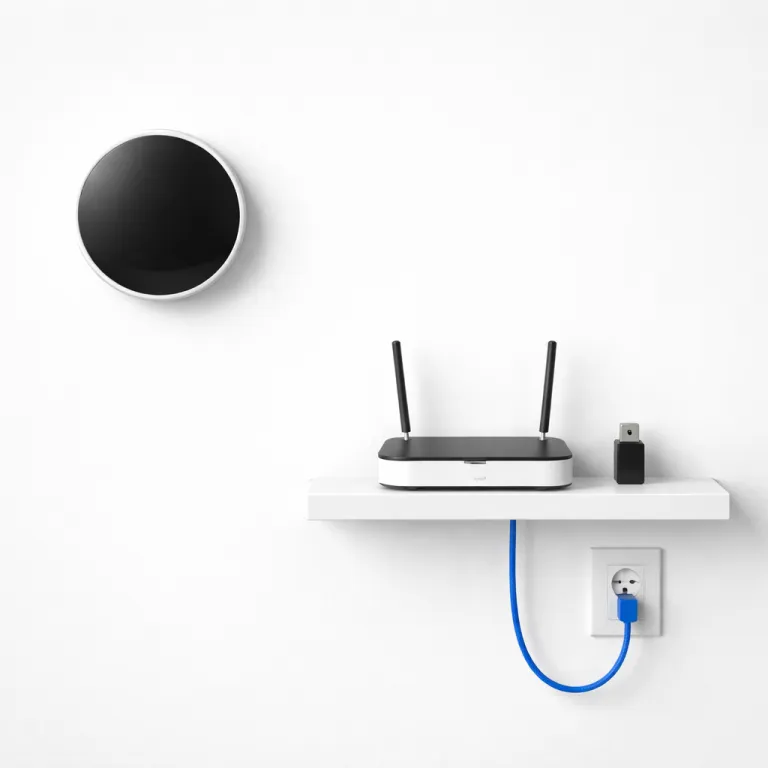

Why smart thermostats depend on the right wifi channel
Smart thermostats look simple on the wall, yet they rely on a stable wifi network. When nearby routers compete on the same channel, your heating schedule can lag or fail, especially during peak usage. Understanding how to change wifi channel becomes essential if you want reliable comfort and accurate energy data.
Most smart thermostats connect to a 2.4 GHz wifi network because this band offers longer range through walls. However, the 2.4 GHz frequency is crowded with overlapping channels from neighbors, baby monitors, and older wireless devices. If you never change channel settings, your thermostat may struggle to maintain a steady link with the access point.
In apartment buildings, dozens of routers broadcast on identical wifi channels, creating interference. Your thermostat’s wireless connection then competes with mobile hotspot signals, game consoles, and streaming devices on the same band. Learning how to manage channels router by router gives you practical solutions to keep climate control responsive.
Smart thermostats also depend on cloud services, so every lost packet matters. When the router configuration is poor, the thermostat may miss commands, delay temperature changes, or drop from the app. A carefully chosen desired channel on the correct ghz network helps the device stay online even when posts on social media or video calls spike traffic.
Because these devices run continuously, small wifi issues become big comfort problems. A single congested channel ghz can cause repeated reconnections, draining batteries in some models. By adjusting wireless settings and selecting better wifi channels, you protect both comfort and hardware lifespan.
How interference affects smart thermostat performance on different bands
Interference is the hidden enemy of every wireless network that supports smart thermostats. On the 2.4 GHz wifi band, only three non overlapping channels exist, so congestion is common in dense housing. When several routers use the same wifi channel, your thermostat’s packets collide and must be resent.
Many modern routers also broadcast a 5 GHz network, which offers more channels and higher speeds. Yet some smart thermostats still prefer the 2.4 GHz frequency because it penetrates walls better and reaches distant access points. If your device connects only to 2.4 ghz wifi, you must manage that band carefully to avoid overlapping channels.
Microwave ovens, cordless phones, and Bluetooth speakers all share similar ghz frequency ranges. These devices generate noise that affects wireless settings, especially when the router sits near the kitchen or living room. Moving the access point and changing to a less crowded channel ghz can significantly improve thermostat responsiveness.
In larger homes with multiple access points, misconfigured channels router by router can create self interference. Each access point should use different wifi channels so that roaming smart thermostats always find a clean signal. When you log router dashboards, verify that automatic channel selection is not forcing all radios onto the same band.
Smart home professionals who work with smoke alarm thermostat suppliers often stress the importance of robust connectivity. A detailed guide from specialized thermostat suppliers explains how safety devices also depend on stable wireless links. Applying the same discipline to your heating controls ensures that both comfort and safety systems remain online.
Step by step : how to change wifi channel on a home router
Before you change wifi settings, check which channels your neighbors use. Install a mobile app that scans each wifi network and lists channels ghz usage around your home. These tools highlight overlapping channels so you can choose a desired channel with minimal interference.
Next, connect a laptop or mobile device to your wireless network and log router administration. Type the router configuration address, often printed on a label, into your browser. After entering the password, look for wireless settings or similar options that control each band.
Within the 2.4 GHz wifi section, you will see a list of channels. If the router is set to automatic, switch to manual and select a cleaner wifi channel based on your earlier scan. For 5 ghz wifi, choose a non DFS channel if your thermostat or mobile hotspot struggles to maintain access.
Save the new settings and allow the router to reboot, which may take a minute. Your smart thermostat should reconnect automatically to the same wifi network name and password. If it fails, restart the thermostat or the access point and verify that the band and channel ghz match its capabilities.
When you manage multiple routers or access points in a large property, repeat the process for each device. Assign non overlapping wifi channels to neighboring units so that roaming thermostats always find a stable signal. For battery powered models, as explained in this battery powered thermostat guide, fewer reconnections mean longer battery life and more reliable schedules.
Optimizing smart thermostat reliability with dual band and mesh systems
Many households now use dual band routers or mesh systems to extend coverage. These solutions broadcast both 2.4 GHz and 5 GHz wifi, sometimes under a single network name. While convenient, this design can confuse devices that prefer one band, including certain smart thermostats.
To manage this, some users create separate SSIDs for each band on the router configuration page. The thermostat then connects only to the 2.4 ghz network, while laptops and mobile hotspot devices use the faster 5 GHz band. This separation reduces competition on the thermostat’s wifi channel and keeps latency low.
Mesh systems add more access points around the home, which improves signal strength. However, if all nodes use the same channels router wide, they may create overlapping channels that hurt performance. Adjusting wireless settings so that backhaul links and client radios use different wifi channels can be very helpful.
When you log router dashboards for mesh systems, look for advanced options that show channel ghz assignments. Some models allow manual control, while others rely on algorithms that may not suit every building. If automatic choices fail, contacting technical support can reveal hidden options to change channel behavior.
Smart thermostats often sit near metal ducts or thick walls, which weaken wireless signals. Placing an access point closer to the thermostat, on a less congested ghz frequency, stabilizes communication. For more guidance on hardware choices, a detailed overview of touchscreen programmable thermostats explains how device design interacts with wifi network quality.
Security, privacy, and remote access when you change wifi settings
Changing the wifi channel is also a good moment to review security. Smart thermostats send temperature data and occupancy patterns across your wireless network, which can reveal daily routines. Strong encryption and careful router configuration protect this information while still allowing remote access.
Always use WPA2 or WPA3 security on every wifi network that hosts smart devices. Avoid open hotspots or weak passwords, even for a temporary mobile hotspot used during maintenance. When you manage multiple routers, ensure that guest networks remain isolated from the main access points that control heating.
Some users share thermostat screenshots or posts about energy savings on social platforms. When you mention brands or settings on facebook linkedin, avoid revealing the exact router model or login details. Public information about your wireless settings could help attackers target your access point.
Remote control apps rely on cloud servers, so a stable ghz wifi link is only part of the story. If you change wifi channel and notice delays, verify that the internet connection and DNS settings are also healthy. Technical support from your internet provider can confirm whether the issue lies beyond the local network.
Security updates for routers and smart thermostats are as important as channel ghz adjustments. Regular firmware updates fix vulnerabilities that could bypass wireless encryption or exploit weak access controls. Combining secure software with well chosen wifi channels gives you both privacy and reliable climate control.
Practical troubleshooting checklist for smart thermostat wifi problems
When a smart thermostat disconnects, start with a simple checklist before replacing hardware. First, confirm that the wifi network name and password have not changed, especially after router upgrades. Then check whether other wireless devices on the same band experience similar drops or only the thermostat.
If the problem is widespread, scan for overlapping channels and note which ghz frequency is most congested. Change wifi channel on the router to a cleaner option and observe performance for a day. Sometimes you must change channel more than once as neighbors adjust their own routers or add new access points.
Next, move the router or access point away from thick walls, aquariums, and metal cabinets. Even a shift of one or two metres can improve the signal on the chosen wifi channel. For thermostats mounted near electrical panels, consider relocating the router or adding additional routers configured as wireless access points.
Restart both the thermostat and the router after major wireless settings changes. When you log router status pages, look for error messages, excessive retransmissions, or unstable ghz network readings. These clues help you decide whether to adjust channels router wide or contact professional support.
Finally, document each modification, including which wifi channels you tried and how the thermostat responded. Keeping brief posts in a maintenance log makes future troubleshooting faster and more helpful. Over time, this disciplined approach to managing channel ghz, router configuration, and access points will keep your smart heating system efficient and dependable.
Key statistics about wifi performance and smart thermostats
- Up to three non overlapping channels exist on the 2.4 GHz band, making careful channel selection critical in dense housing.
- Dual band routers can reduce congestion by shifting high bandwidth devices to 5 GHz, leaving 2.4 GHz wifi channels clearer for smart thermostats.
- Mesh systems with poorly planned channels router wide can increase interference, while optimized access points significantly improve stability.
- Smart thermostats that frequently reconnect due to noisy ghz frequency conditions may see reduced battery life and slower response times.
- Separating guest and main wireless networks helps protect thermostat data while maintaining flexible access for visitors.
Common questions about changing wifi channel for smart thermostats
How do I know which wifi channel is best for my smart thermostat ?
Use a mobile scanner app to view every nearby wifi network and its channels. Choose a wifi channel on the 2.4 GHz band that shows the fewest overlapping channels and the weakest competing signals. After you change wifi channel in the router configuration, monitor thermostat stability for at least one day.
Will changing the wifi channel disconnect my smart thermostat permanently ?
Changing channel settings usually causes only a brief interruption while the router reboots. The thermostat should reconnect automatically if the wifi network name, password, and band remain unchanged. If it does not, restart the device and verify that it supports the selected ghz network.
Should my smart thermostat use 2.4 GHz or 5 GHz wifi ?
Most smart thermostats are designed for 2.4 ghz wifi because this band offers better range through walls. If your router supports both bands, connect the thermostat to the 2.4 GHz network and reserve 5 GHz for laptops and streaming devices. This separation reduces congestion on the thermostat’s wifi channel and improves reliability.
Do mesh systems make it easier to manage wifi channels for thermostats ?
Mesh systems can improve coverage by adding more access points, but they also complicate channel management. Some models automatically assign wifi channels, which may not always avoid overlapping channels in crowded environments. When possible, adjust wireless settings manually or consult support to optimize channel ghz assignments for smart devices.
Is it safe to share router or thermostat information on social media ?
Sharing general experiences or energy saving posts on facebook linkedin is usually safe if you avoid sensitive details. Never publish your router login, exact wireless settings, or access point locations. Keeping this information private reduces the risk of targeted attacks on your wifi network and connected thermostats.