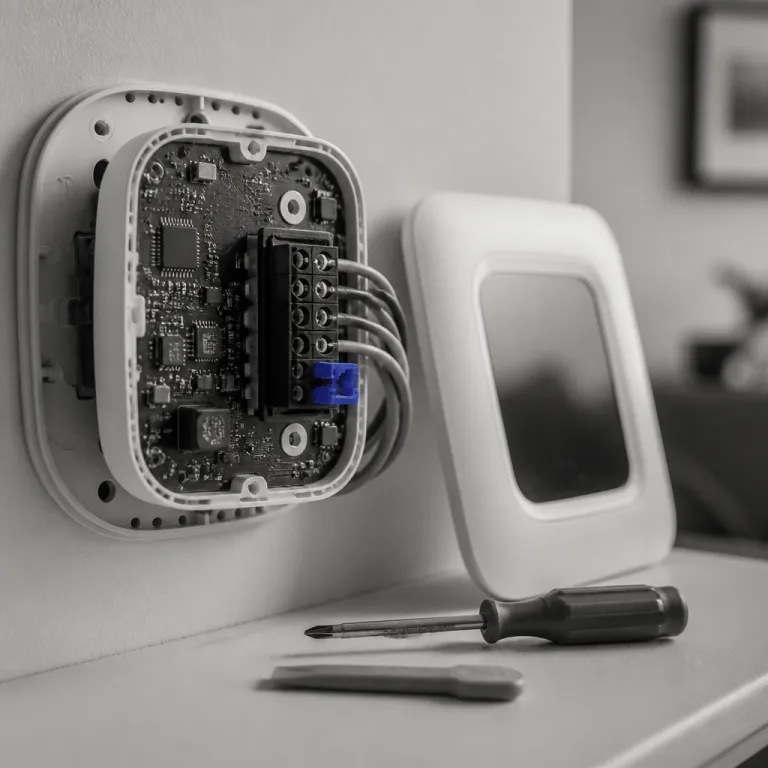
Why your smart thermostat keeps updating itself
Smart thermostats behave more like phones than old dials on the wall. A modern smart thermostat firmware update guide needs to start with one blunt fact, which is that Ecobee, Nest, and Honeywell all push automatic firmware updates over the internet without asking you first. Those silent firmware updates can improve heating efficiency, but they can also change features overnight and leave a thermostat screen looking unfamiliar.
Ecobee thermostats download new firmware whenever they are connected to WiFi and have enough power. You cannot schedule a thermostat update, delay it, or stop it, so the device simply installs the update software when the servers decide the time update window is right. Nest and Honeywell thermostats follow the same pattern, although their updates sometimes roll out by device batches, which means two identical devices in one home may not receive updates on the same day.
From the customer side, this feels both convenient and risky. You get security patches and new features without opening an app or touching the thermostat screen, yet you also wake up to changed menus or a thermostat stay schedule that no longer behaves as expected. That is why any practical smart thermostat firmware update guide treats updates as part of regular maintenance, not as background noise you can skip like you might skip content in a long manual.
Think of firmware as the operating system that tells the device how to manage heating and cooling. When that firmware changes, the way your thermostat talks to sensors, to your phone app, and to other smart devices can shift in subtle ways. Those shifts explain why some firmware updates fix a flaky WiFi connection while other updates break a previously connected integration with a voice assistant.
Because updates are automatic, your best control lever is preparation. Keep the thermostat powered with a stable C wire or a fresh battery, keep it connected to a reliable internet network, and keep your registered account details current in the app. That way, when updates arrive, the device has the power and connectivity it needs to finish cleanly and show an update complete message instead of leaving you guessing at a frozen screen.
How Ecobee, Nest, and Honeywell actually install firmware
Each brand handles firmware updates slightly differently behind the scenes. Ecobee thermostats usually download firmware in the background while the heating or cooling schedule continues, then they reboot quickly when the download is ready, which is why you sometimes see the thermostat screen go dark for a minute. Nest and Honeywell devices behave similarly, but their update fails patterns differ when power or WiFi is marginal.
Ecobee relies heavily on a solid C wire for power, so a weak transformer or an overloaded relay can interrupt a thermostat update midstream. If your system uses an SPDT relay or an add a wire kit, make sure that hardware is sized correctly, and guides such as this explanation of how an SPDT relay quietly powers smarter thermostat control can help you understand the power path. When power sags during firmware updates, the device may reset repeatedly, leaving the customer staring at a boot loop instead of a normal home screen.
Nest thermostats lean more on their internal battery, which charges from the HVAC system, so long heating or cooling calls usually keep that battery topped up. Short cycles or a system that rarely runs can leave the battery low, which makes a time update event more fragile and more likely to fail. If the update fails repeatedly, Nest may show a low power warning in the app, and the only real fix is to improve the wiring or run the system long enough to recharge.
Honeywell WiFi thermostats, including the VisionPRO and T series, often depend on both stable power and a consistent internet connection. When the router reboots during an update, the thermostat may reconnect automatically, but sometimes it will stay offline until you manually reset the network settings. In those cases, a quick reboot of both the router and the thermostat usually restores the connected status and lets the firmware update complete on the next attempt.
Whatever the brand, the pattern is the same. The device quietly downloads firmware, checks that the file is valid, then reboots to install it while trying to keep your heating set points intact. When that process works, you never notice, but when it fails, you see odd behavior such as a blank screen, a thermostat stay mode that ignores schedules, or an app check notification that the device is offline.
What firmware updates change on your wall
Firmware updates do far more than patch obscure security bugs. On Ecobee, a major thermostat update can change how the thermostat screen shows room sensors, how the app turn on or off eco modes, and how quickly the device reacts when you adjust the temperature. Nest updates have historically tweaked learning algorithms, which can shift when the heating starts in the morning and how aggressively the thermostat tries to save energy.
Honeywell WiFi thermostats, including models like the VisionPRO 8000 described in many precise home comfort guides, often receive firmware updates that refine fan control or add compatibility with new smart home platforms. Those changes can be welcome, but they also mean that a previously stable integration with a voice assistant or a lighting system may need to be re linked. When a smart thermostat suddenly stops responding to a routine that used to dim lights and lower heating together, a recent firmware change is often the culprit.
On the interface side, updates sometimes rearrange menus or add new tiles to the main content area of the thermostat screen. You might need to scroll top through settings to find familiar options, and the app may show new cards or different icons for the same functions. That is why a smart thermostat firmware update guide should always include screenshots or at least clear descriptions of where key options moved after major updates.
Behind the scenes, firmware updates can change how the thermostat talks to your furnace, heat pump, or boiler. A tweak to compressor staging or fan delay can shave a few percent off your energy use, but it can also expose marginal wiring or a weak transformer that never bothered the old mechanical thermostat. When that happens, the customer experiences it as random reboots or a thermostat that will not stay connected to WiFi, even though the root cause is a slightly higher power draw from the smarter device.
For homeowners, the practical takeaway is simple. After any visible firmware change, verify that your heating and cooling still reach the set temperatures, that schedules still run, and that every connected app still controls the device as expected. If anything feels off, do not wait, because small glitches right after updates are easier to fix than long standing quirks that you learn to live with.
Common problems after updates and how to recover
When a firmware update goes wrong, the symptoms are usually predictable. You might see the thermostat screen frozen on a logo, the app reporting that the device is offline, or the heating refusing to start even though the set point is higher than the room temperature. In more subtle cases, the thermostat stay schedule may reset to a default, leaving the home too warm or too cold at odd hours.
The first recovery step is almost always a controlled reboot. On Ecobee and many Honeywell thermostats, you can reset the device from the settings menu, while Nest often needs a long press on the ring to restart, and this kind of reset does not erase schedules or WiFi details. If the update fails repeatedly and the device never reaches an update complete state, cut power at the breaker for thirty seconds, restore power, then let the thermostat reconnect to the internet and attempt the firmware installation again.
If a simple reboot does not help, move to a deeper reset. A factory reset wipes schedules, WiFi, and smart home links, returning the thermostat to the state it had when you first opened the box, which is why you should only use it after backing up or writing down your preferred heating set points. Once the reset is done, reconnect the thermostat to WiFi, sign back into your registered account in the app, and re add any remote sensors or other devices that used to be connected.
Integration problems follow their own pattern. After firmware updates, platforms like Apple Home, Google Home, or SmartThings sometimes lose their link to the thermostat, so the app turn commands from those ecosystems simply stop working. The fix is usually to remove the thermostat from the smart home platform, re link it using the latest app, and then test voice commands or routines to confirm that the device responds again.
When the screen itself misbehaves, such as touch targets not responding or menus refusing to scroll top, a combination of power cycling and a settings reset usually clears the glitch. If the thermostat still ignores input or the app check keeps reporting errors, contact the manufacturer with details about the firmware version, the exact time update when the problem started, and any error codes shown on the screen. That level of detail helps support teams distinguish between a bad update and a failing piece of hardware.
Preventive habits so updates do not wreck your comfort
Good habits turn automatic updates from a gamble into a routine. Start by giving the thermostat solid power, either through a dedicated C wire or a professionally installed adapter, because a strong power supply reduces the odds that firmware updates will stall mid install. If your system relies on a battery powered thermostat, replace the battery before winter and summer peaks, when updates and heavy heating or cooling loads tend to coincide.
Network stability matters just as much. Place your router where the thermostat can stay connected with a strong signal, avoid frequent router reboots, and use a single WiFi name so devices do not bounce between networks during an update. If you use advanced smart home gear, consider a basic uninterruptible power supply for the router and modem, which keeps the internet alive long enough for the thermostat to finish its firmware work even during short outages.
Account hygiene is another underrated safeguard. Make sure your thermostat is tied to a single registered account that you actually use, because ghost accounts can complicate support and app access when something breaks. Periodically open the app, check that the device shows online status, and skim the main content area for any notices about pending updates or required actions.
Smart home sprawl adds its own risk. The more devices and platforms you connect, the more likely it is that one firmware change will upset a fragile chain of automations, especially when lighting, plugs, and thermostats all try to coordinate. If you rely on complex scenes that blend temperature control with smart house lighting control for effortless comfort and energy savings, as described in some integrated lighting control guides, document those routines so you can rebuild them quickly after a disruptive update.
Finally, treat your thermostat like the small computer it is. When you notice an update complete message or a subtle interface change, take a minute to test manual control from the screen, from the app, and from any connected platforms. The real measure of success is not the new firmware version number, but whether your home quietly reaches the right temperature while your energy bills stay predictable, because the point of all this smart technology is not the app interface, but the February gas bill.
FAQ
How can I tell if my smart thermostat just updated its firmware?
Most smart thermostats show a brief message on the thermostat screen or in the app when firmware updates finish. If you missed that, open the app, go to settings, and compare the listed firmware version with the one on the manufacturer’s support page for your exact model. A recent change in menus, icons, or schedule behavior is another strong hint that a thermostat update ran in the background.
What should I do if my thermostat is stuck after an update?
If the screen is frozen or the device keeps rebooting, start with a controlled power cycle at the breaker or by removing the thermostat from its base for thirty seconds. When it restarts, give it a few minutes to reconnect to the internet and finish any pending firmware tasks before pressing buttons repeatedly. If the problem persists, perform a settings reset without wiping WiFi, and only move to a full factory reset if support recommends it.
Can a firmware update change my heating and cooling schedules?
Minor firmware updates usually leave schedules intact, but major revisions sometimes reset parts of the programming or add new default modes. After any visible update, open the app and the thermostat screen to confirm that wake, leave, and sleep periods still match your routine. If anything looks wrong, re enter your preferred set points immediately so the thermostat stay behavior matches your comfort needs.
Why do my smart home integrations break after thermostat updates?
Integrations depend on both the thermostat firmware and the external platform, so when either side changes, the link can fail. After a firmware update, authentication tokens or connection methods may change, which makes services like Apple Home or SmartThings lose access. Removing and re adding the thermostat in those apps usually restores control, especially if you also update software on your phone and hub.
Is it safe to turn off power during a thermostat firmware update?
Cutting power in the middle of a firmware installation is risky, because it can corrupt the software and leave the device unbootable. Only shut off power if the thermostat has been stuck on the same update screen for an hour or more and normal reboot commands do not respond. When you restore power, watch for signs of life on the screen, and contact support quickly if the thermostat never progresses past a logo.